
AI features
An assistant that works from your own records.
Ask about your figures by typing or out loud, on any screen. Say what goes into a form and check what it filled in. Every answer shows where it came from — and nothing is saved, issued or sent until you press the button yourself.
In the public demo the assistant is shown but switched off. The videos on this page were recorded with it switched on, in a copy of the same demo company.
Ask your data
Type a question in plain words — how last month's sales compare, who owes you the most, how much VAT this month's records add up to — and get the figures back, calculated from your own records.
- It reads your sales, purchases, cash, receivables, books, taxes, fixed assets, inventory, counterparties and products
- Figures are cited to the records they came from, each with a link that opens it
- It reads only what your role already lets you see
- Every answer is labeled as AI-generated
Ask your data Length
Type a question on any screen and get the figures back, with the records they came from.
The voices in this video are AI-generated.
Show transcript
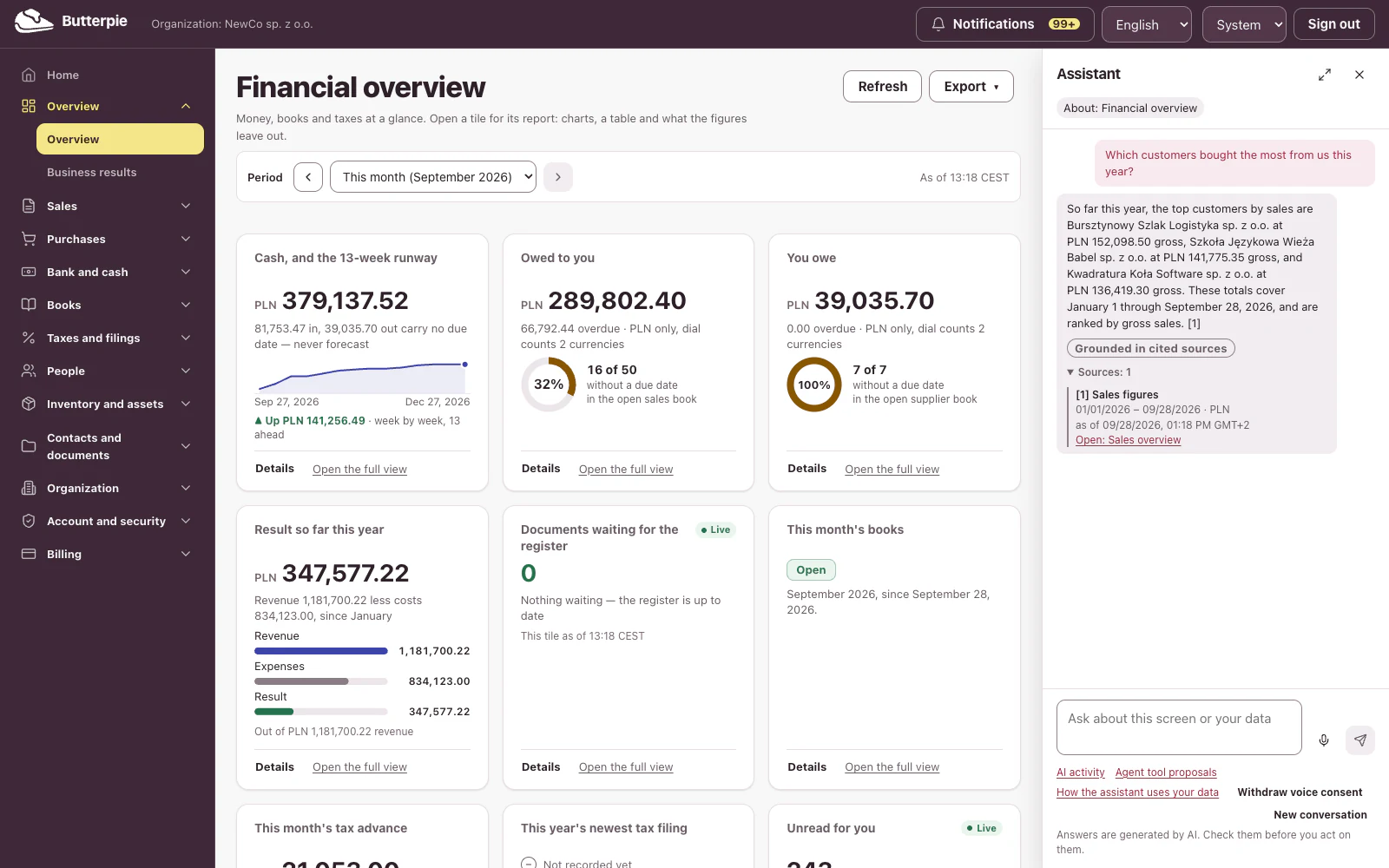
Meet your assistant! It lives on every screen, right here in the corner.
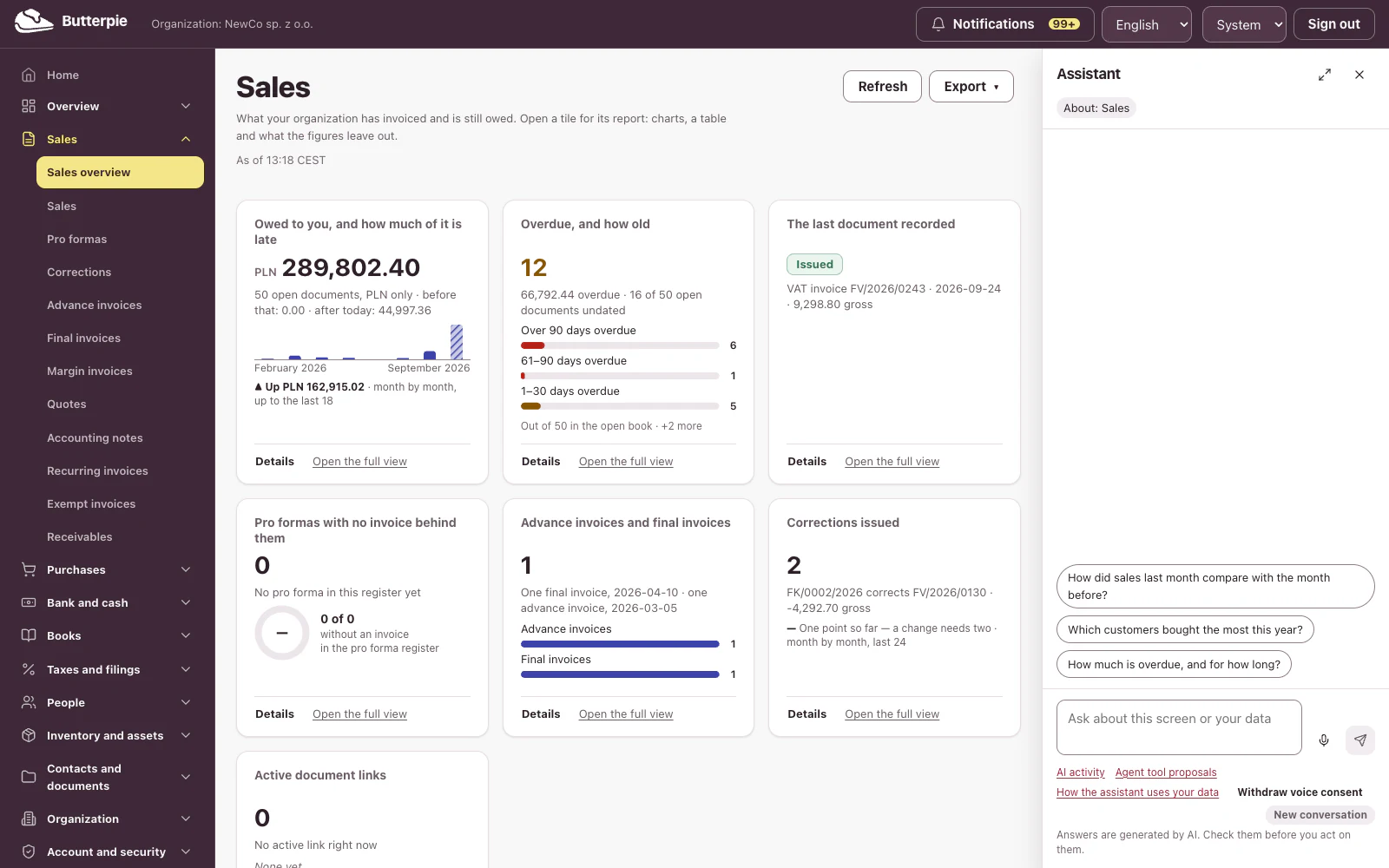
Open it, and it already knows which screen you're on, with questions ready to go.
How much do customers owe us right now? A straight answer, with the figures, from your own books.
And answers come with their sources. One click opens the screen behind the numbers.
Or just type, in plain words. Our best customers this year? Done.
Move around, and the conversation comes with you. It even knows which record you're looking at.
Every answer is labeled with how well your records back it up. And the assistant sees only what your role can already see.
Your books, one question away. The assistant comes with the Pro plan. Create your account and ask away!
On every screen, about that screen
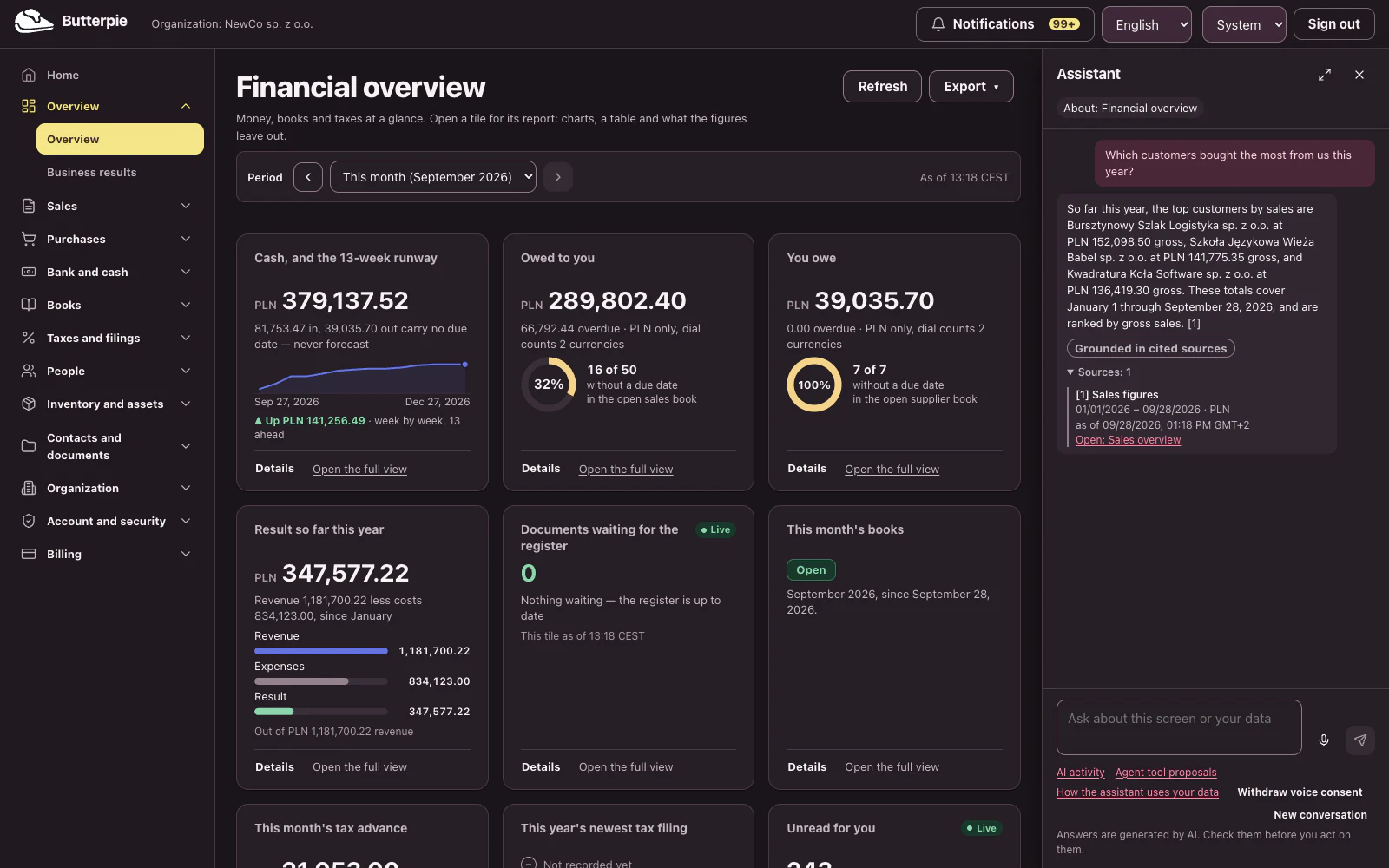
The assistant waits in the corner of every signed-in screen. It knows which screen you are on and which record is open, and suggests questions that fit.
- Suggestions change with the screen: a dashboard, an invoice, a counterparty, a product
- Ask about the invoice on screen, and it reads that invoice fresh from your records
- The conversation follows you from screen to screen and is cleared when you sign out
- Open it as a full page when you want more room
Questions it suggests, screen by screen
- Overview
- How much do customers owe us right now?
- Sales
- Which customers bought the most this year?
- Purchases
- What did we spend the most on this quarter?
- Bank and cash
- How has our cash position changed over the last three months?
- Taxes and filings
- How has the VAT due changed month by month this year?
- Inventory and assets
- How have inventory levels changed over the last few months?
- An open invoice
- Is this invoice paid, and is it overdue?
Talk to it out loud
Press the microphone and ask. The assistant answers aloud, and the conversation appears on screen as captions — with the same cited figures a typed question gets.
- The same answers as typing: the same records, the same permissions, the same sources
- A red indicator shows whenever the microphone is on; mute or end the call at any time
- Voice asks for your consent first, and you can withdraw it whenever you like
- No audio and no transcript of the call is kept; the captions live only in your browser tab
- A call ends after two minutes of silence, and never runs past fifteen minutes
Talk to your data Length
Ask out loud, hear the answer, and see it on screen with its sources.
The voices in this video are AI-generated.
Show transcript
Narrator: No time to type? Just talk! Click the microphone. A red line and a clear label show when it's listening, and it listens only when you say so.
User: How much do our customers owe us right now?
Assistant: I'll check that for you.
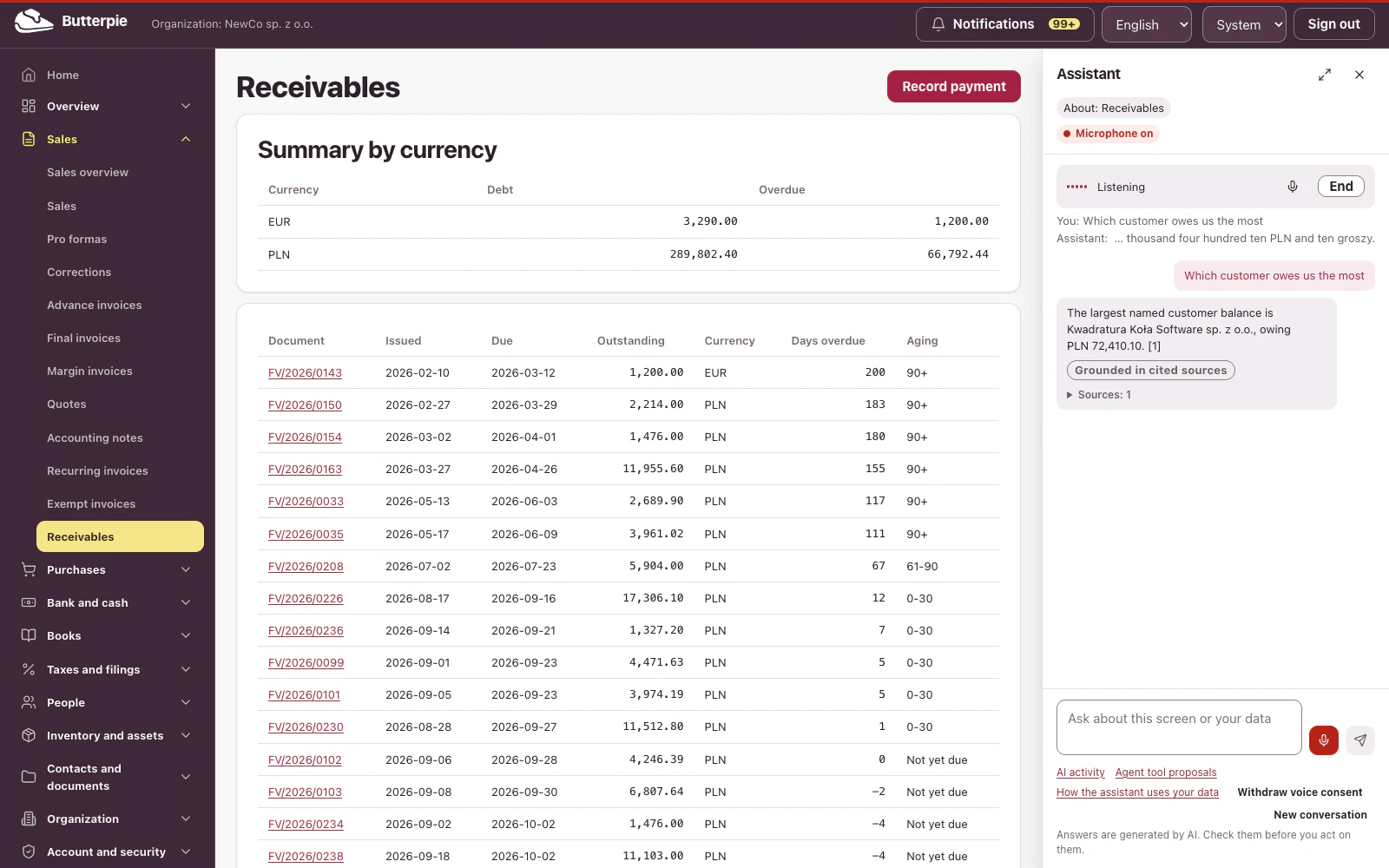
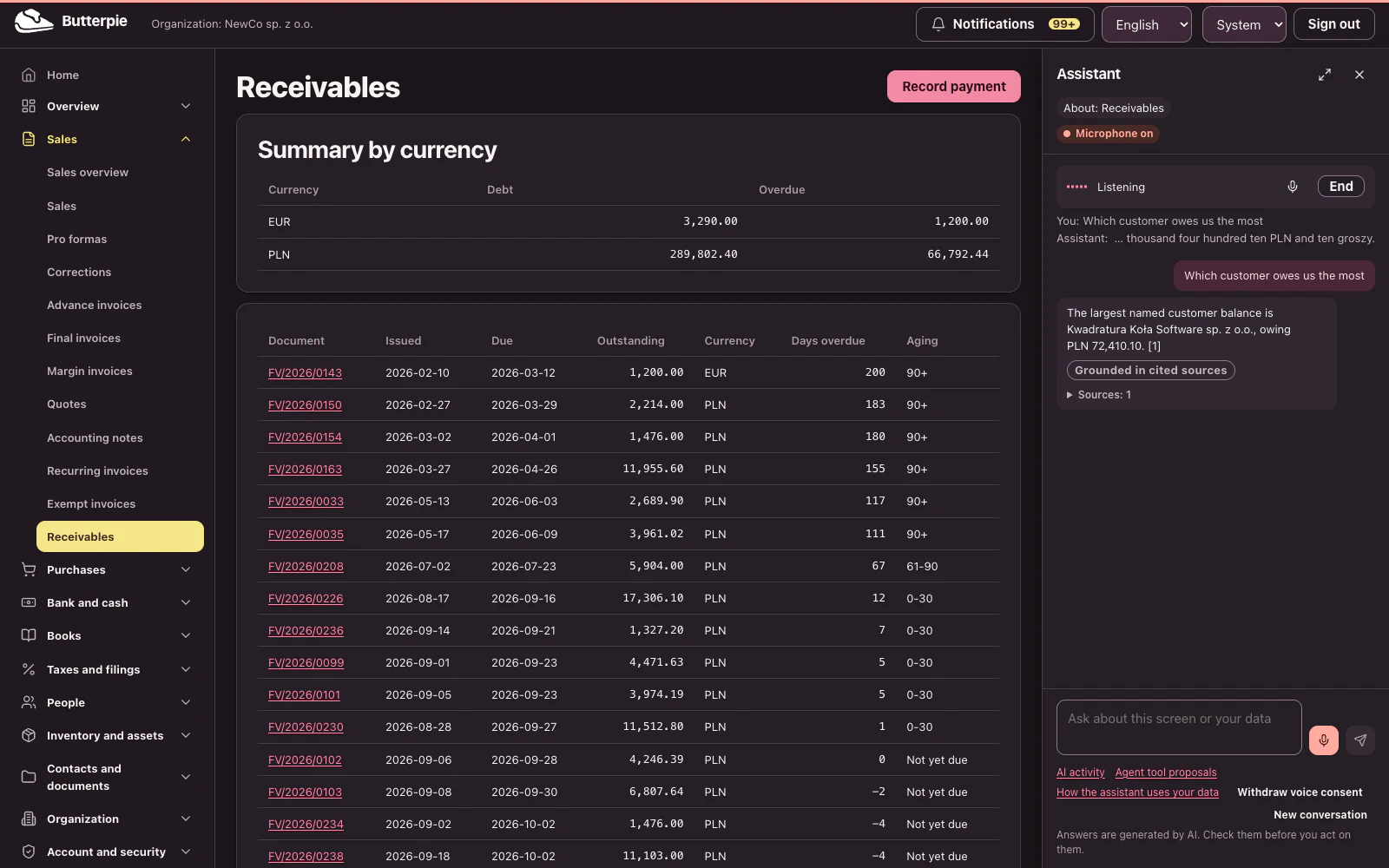
Assistant: As of September 28, 2026, customers owe you 289,802 PLN and 40 grosz and 3,290 euros. Of that, 66,792 PLN and 44 grosz and 1,200 euros are overdue.
Narrator: It checks your books and answers out loud, and everything lands in the conversation, sources included.
User: Which customer owes us the most?
Assistant: Checking that.
Assistant: Kwadratura Koła Software sp. z o.o. owes you the most, with PLN 72,410.10.
User: Great, thanks!
Assistant: You're welcome! Anything else?
Narrator: Talk to your data, hands-free. The assistant comes with the Pro plan. Create your account and say hello!
Fill in a form by talking
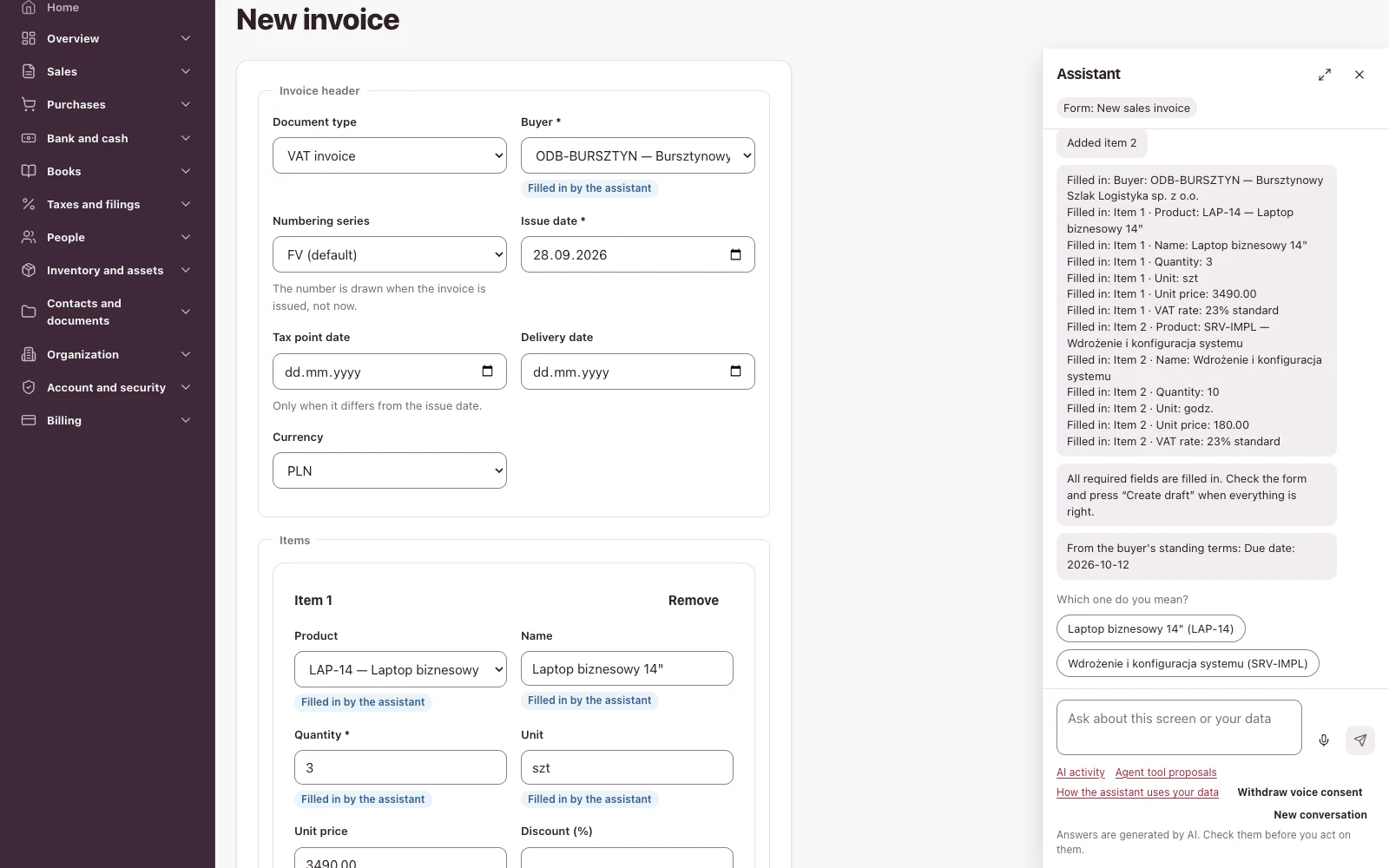
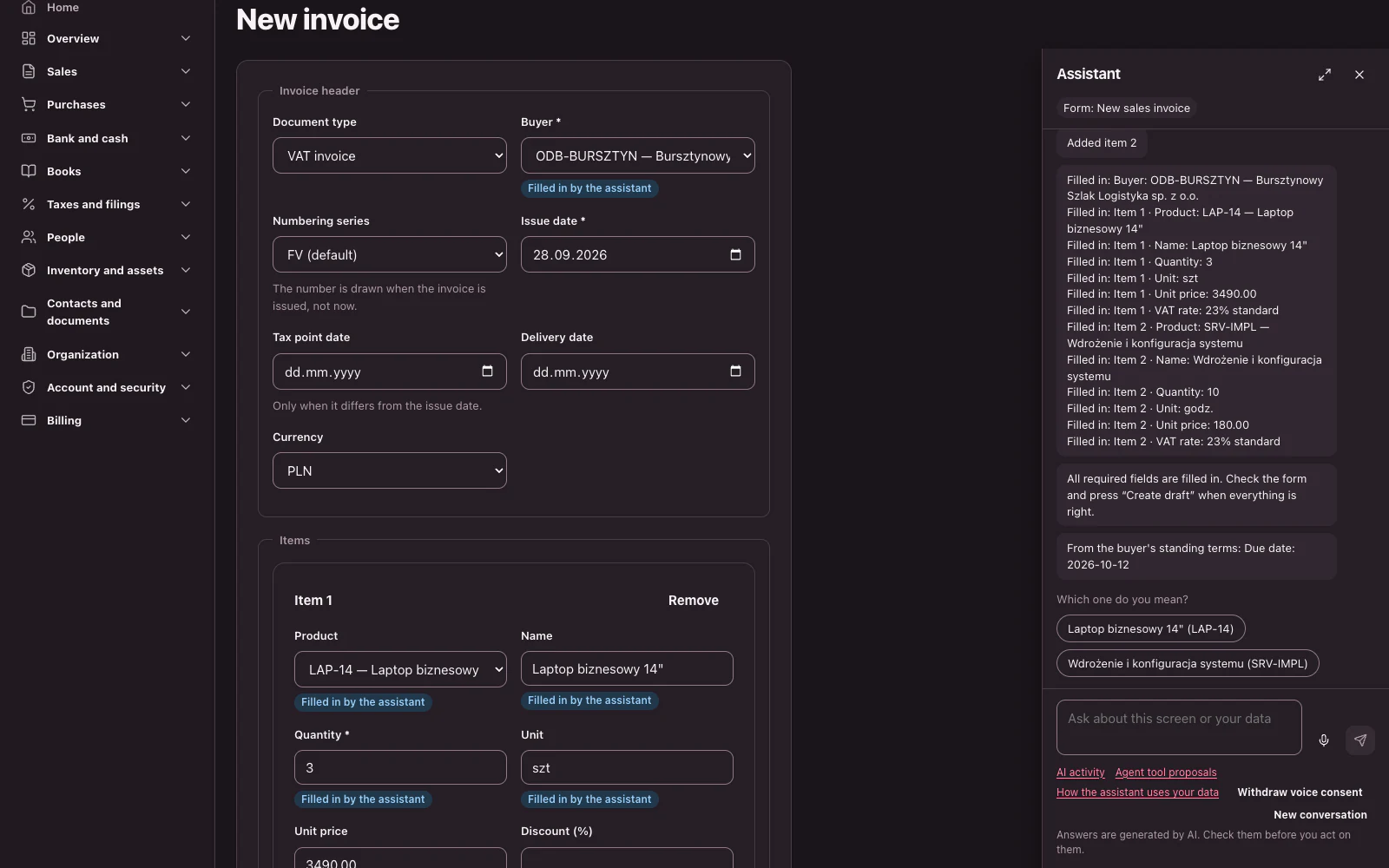
Open a form and say what goes in it. The assistant fills in the fields as you go, reads back what it entered and asks for whatever is still missing.
- Each field it fills is marked “Filled in by voice — check it” until you edit it
- It asks for the next missing field by name, in the order the form shows them
- When everything required is filled in, it says so — and leaves the button to you
- A spoken “yes” saves nothing: only your click on the form's own button does
Forms the assistant fills in
On ten everyday forms, the assistant fills in fields for you — from what you type or say, and from the counterparties and products already in your records.
- Values are checked before they reach the form: a date must be a real date, a choice must be one the form offers
- Counterparties and products come from your own records; if several match, it asks which one you mean
- Anything it could not use is reported back to you, never quietly dropped
- Bank account numbers are never filled in by the assistant
The ten forms
- New counterparty
- Edit counterparty
- New product or service
- Edit product or service
- Record a payment
- New sales invoice
- New expense document
- New business trip
- New leave request
- New internal voucher
Sources and trust labels
You can always see what an answer rests on — and when it rests on something you did not write yourself.
- Each answer lists its sources, dated, and each one opens the record it came from
- A label says how well the answer is grounded: in cited sources, only partly, or not in your records at all
- A question about the books or taxes that your records cannot fully support is refused rather than guessed
- Values taken from outside content — a supplier's document, an imported record — are marked “Filled in from external content — check it”
What it does not do
The assistant helps you read and fill in. The decisions, and the buttons, stay with you.
- It never saves, issues, sends or submits anything — you press the button
- It never reads beyond what your role allows, and never another organization's data
- Passwords, attachments and PDF files are never sent to it
- Your help requests never go to it: people answer them
Credits, plainly
The assistant is part of the Pro plan, on seats that include AI, and it spends AI credits that you add to your workspace.
- Credits are a one-time top-up, valid for 12 months; nothing renews on its own
- A typed question spends credits by the work its answer needs; a voice call by its length
- When credits run low, the assistant says so; people who manage billing see the exact balance
- With no credits left, the assistant stays in view and shows how to add more
Where your data goes
To answer, the assistant sends our AI service provider only what the answer needs — never your name, your email address or your password.
- Your question and the last few messages, the screen and the record open on it, any form on the screen, and the figures it reads for you
- In a voice call your voice goes from your browser straight to the provider, which therefore also sees your device's IP address
- The provider is instructed not to store conversations and does not train on them; it may keep them for up to 30 days to detect abuse, unless the law requires longer
- The data is processed in the United States, under the European Commission's Standard Contractual Clauses
Put your own questions to your own books
Create an account on the Pro plan, add AI credits, and ask the assistant about your month.